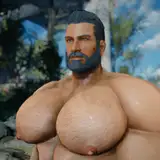
This guide provides instructions on how to install my Fallout 76 outfits mods.
Fallout 76 - Atomic Muscle Male Body and its requirements
Make sure you have all requirements correctly installed.
Then, if you want the same body / penis / anus / bulge as shown in screenshots on outfit download pages, you can jump directly to the "Installation" section, ignoring the "BodySlide" section below.
If you have created your own bodyslide preset(s), proceed with the "BodySlide" step.
If any step or instruction is unclear, please don’t hesitate to let me know!
1. Download BodySlide file from each mod page, and install it as a regular Fallout 4 mod via MO2. Activate it on the left panel of MO2.
2. Open BodySlide via MO2.
3. Type "AM76" in "Filter Outfits" search bar, or only the name of an outfit you are going to build.

4. Open the dropdown menu of "Preset" and select your preset. You might need two presets, one for nevernude / skimpy outfits and the other for revealing outfits.

5. Click "Batch Build" on the bottom left, with "Build Morphs" unchecked.

6. In the prompt window, select the outfits you are going to build. You can simply right click - select all to quickly select everything you have installed. Then hit "Build".

7. Find the output "meshes" folder, and continue with the 2. step of the "Installation" section.
There might be other methods for installation but I only provide support to my method. If any step or instruction is unclear, please don’t hesitate to let me know!
1. Download the file ending with "Meshes" from each mod page (if there are multiple "Meshes" folder, select only one to download), and unzip it anywhere. You should see a "meshes" folder.
2. Navigate to the folder "SteamLibrary\steamapps\common\Fallout76\Data". The location might vary but anyway you should open the "Data" folder of Fallout 76.
3-1. If you have skipped the "BodySlide" section, copy the "meshes" folder from step 1. into the "Data" folder. In the end, there should be a "meshes" folder inside the "Data" folder. Then go to the step 3-3.
3-2. If you have built your own meshes in the "BodySlide" section, then copy the output "meshes" folder that you have generated via BodySlide into the "Data" folder. In the end, there should be a "meshes" folder inside the "Data" folder. Then proceed with the step 3-3.
3-3. If there are also "materials" or "textures" download files available on the mod page, also download and unzip them. And copy those two folders "materials" and "textures" into the "Data" folder. If there are not, ignore this step.
4. Now navigate to "Documents\MyGames\Fallout 76" this folder, and open "Falout76Custom.ini". The location might vary.
5. Add ", BakaFile - Textures.ba2, BakaFile - Main.ba2" directly after the last ".ba2" of "sResourceArchive2List".

6. Download Baka File Tool and unzip it anywhere you like.
7. Open Baka File Tool and set game to Fallout 76 with correct game path.
8. Go to "Settings" section of Baka File Tool and make sure "Compress Archives" is checked.

9. Back to the "Tool" section of Baka File Tool and click "Refresh Data Folder" and then click "Create Archive".

10. Test in game and enjoy!